Email marketing works best when design and delivery move together without friction. Many teams using FireDrum Email Marketing need a faster way to build campaigns that still look polished, stay on brand, and render correctly across inboxes.
Canva gives marketers a simple way to design full email layouts without relying on code or complex builders. The drag-and-drop editor makes it easy to structure content, apply brand colors, and build visually consistent campaigns in a short amount of time.
The workflow becomes powerful when these two tools are connected. Canva is used to design the email visually, then the finished layout is exported as HTML and brought into FireDrum using the “Code Your Own” email option. From there, FireDrum takes over with list management, sending tools, tracking, and performance reporting.
This process gives marketers a clear path from concept to inbox. The design stays flexible, the structure stays controlled, and the final email can be tested and adjusted before it reaches a live audience.
Why Canva and FireDrum Work Well Together for Email Campaigns

Combining Canva with FireDrum Email Marketing creates a workflow that separates creative design from campaign execution in a clean, efficient structure. Canva focuses on building the visual message, while FireDrum handles delivery, audience targeting, and performance tracking.
Visual design speed meets email delivery control
Email production improves when design tools and sending platforms each handle what they do best.
- Canva provides drag-and-drop layout creation without coding
- FireDrum Email Marketing manages deliverability, segmentation, and reporting
- Designers can build full campaigns without waiting on development support
- Marketers can adjust messaging and visuals without rebuilding email infrastructure
Use cases where this workflow performs well
This Canva-to-FireDrum process is well-suited to campaigns that rely on structured visuals and consistent branding.
- Promotional campaigns with strong visual branding and clear offers
- Event announcements that require structured sections and highlighted details
- Seasonal campaigns for ecommerce brands and service providers with changing offers
- Agency-managed campaigns where multiple clients require distinct branded layouts
Each use case benefits from Canva’s layout flexibility and FireDrum Email Marketing’s ability to manage delivery at scale.
Workflow benefits inside FireDrum Email Marketing
Once the design is imported into FireDrum Email Marketing, the focus shifts from creation to execution and optimization.
- Centralized list management after design completion, including segmentation by audience behavior and engagement history
- A/B testing applied to subject lines, content variations, and calls to action after the email is uploaded
- Analytics tracking tied directly to campaign performance, including opens, clicks, and conversions
This structure keeps campaign measurement consistent and tied directly to audience response.
Designing the Email in Canva: Structure and Setup

Building an email inside Canva starts with selecting the right structure (or starting from one of FireDrum's custom email templates), then layering branding and content in a way that converts cleanly when exported to HTML and imported into FireDrum Email Marketing. The goal is a layout that remains consistent across desktop and mobile and translates cleanly into an email client.
Selecting the correct Canva email format
The foundation of a strong email design starts with the right template choice inside Canva.
- Open Canva and search for “Email Newsletter”
- Choose a responsive template designed for marketing use cases
- Prioritize layouts built with stacked sections for mobile viewing
- Select templates that use simple grid structures instead of overly complex designs
Templates with clean section separation export more reliably into HTML for FireDrum Email Marketing.
Establishing brand consistency before design work begins
Brand consistency reduces redesign time and keeps campaigns aligned across sends.
- Upload logos, brand colors, and approved imagery into Canva Brand Kit
- Define typography hierarchy for headings, subheadings, and body text
- Set reusable styles for buttons and content blocks
- Lock recurring design elements so they stay consistent across campaigns
This setup ensures every email built in Canva maintains the same visual identity when imported into FireDrum Email Marketing.
Building the email layout inside Canva
A structured layout improves both readability and conversion performance.
- Header section with logo placement and a clear primary message
- Hero section featuring the main offer, announcement, or campaign focus
- Supporting content blocks that expand on benefits, details, or secondary promotions
- Call-to-action section with a prominent button designed for clicks
- Footer section containing contact details, unsubscribe information, and compliance text
Each section should function independently so it can be rearranged or edited without breaking the overall structure.
Design considerations specific to email readability
Email design must prioritize clarity across multiple inbox environments.
- Keep image-to-text balance controlled to reduce load time and improve deliverability
- Maintain consistent spacing between sections for easy mobile scanning
- Use button-style calls to action instead of plain text links for primary actions
- Limit decorative elements that do not support conversion goals
- Design with vertical flow in mind since most users read emails top to bottom on mobile
A clean structure in Canva improves how the final HTML performs when uploaded to FireDrum Email Marketing.
Preparing the Canva Email for Export
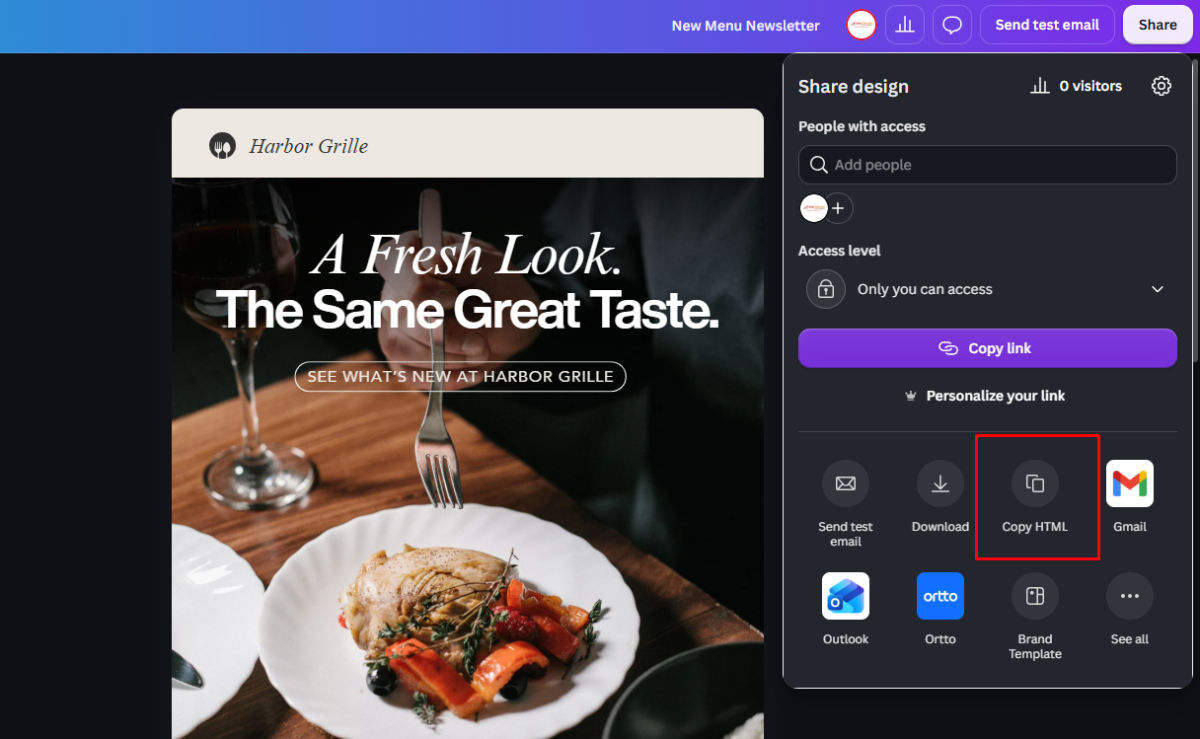
Before moving a finished design from Canva into FireDrum Email Marketing, the export stage determines how smoothly the email will render across inboxes. A structured review and clean file setup reduce formatting issues and prevent broken layouts after upload.
Final design review before export
The final pass in Canva ensures the email is production-ready and consistent across devices.
- Confirm all links are active, correctly formatted, and pointing to the intended landing pages
- Check alignment consistency across desktop and mobile preview modes inside Canva
- Review image resolution to ensure clarity in inbox rendering without pixelation
- Scan spacing between sections to confirm visual flow remains intact on smaller screens
- Validate that CTA buttons remain visually prominent and easy to tap on mobile
Exporting HTML from Canva
Exporting correctly ensures the email structure carries over cleanly into FireDrum.
- Use Canva’s download options and select HTML export when available for email-compatible output
- Confirm the export includes either embedded images or properly hosted image links
- Download and open the HTML file locally to verify basic structure integrity
- Save the export into a clearly labeled campaign folder for version control
- Keep all associated image assets organized if Canva generates a separate asset folder
A clean export reduces the amount of manual correction required after upload into FireDrum Email Marketing.
File organization for FireDrum upload
A consistent file structure simplifies campaign uploads and future edits inside FireDrum Email Marketing.
- Name the HTML file using the campaign title and send date for easy identification
- Store image assets in the same folder if they are not embedded in the HTML
- Keep a backup copy of the original Canva export before any modifications
- Maintain a versioned folder system for multiple campaign iterations
Uploading Canva HTML into FireDrum Email Marketing
Once the email design is finalized and exported from Canva, the next step is bringing it into FireDrum Email Marketing for campaign setup, testing, and delivery. This stage focuses on correctly importing the HTML file and confirming that the design renders as intended across devices and email clients.
Creating a new email campaign inside FireDrum
The setup process in FireDrum Email Marketing begins by selecting the appropriate campaign type.
- Log into the FireDrum Email Marketing dashboard
- Navigate to the email campaigns section
- Select the option to create a new email campaign
- Choose “Code Your Own” instead of using the drag-and-drop builder
- Assign a campaign name that matches the Canva file for easy tracking
This ensures the Canva HTML is treated as a custom-coded design rather than a template-based layout.
Importing the Canva HTML file
Once the campaign shell is created, the HTML file is uploaded into FireDrum Email Marketing.
- Upload the exported Canva HTML file directly into the code editor
- Allow the system time to process and render the email preview
- Confirm that all images, spacing, and layout blocks load correctly
- Check that external image links resolve properly if they are hosted outside the file
At this stage, the email transitions from a design file into a live campaign draft within FireDrum.
Initial structure check after upload
After import, a structured visual review ensures the email behaves correctly inside the system.
- Header alignment matches the original Canva layout without shifting or distortion
- Buttons render as fully clickable elements with correct link destinations
- Images load properly without cropping, stretching, or broken paths
- Section spacing remains consistent across the full email body
- The overall layout reflects the intended hierarchy from the Canva design
This validation step confirms that the email is ready for deeper testing, previewing, and final adjustments before sending through FireDrum Email Marketing.
Adjusting and Refining the Email Inside FireDrum Email Marketing
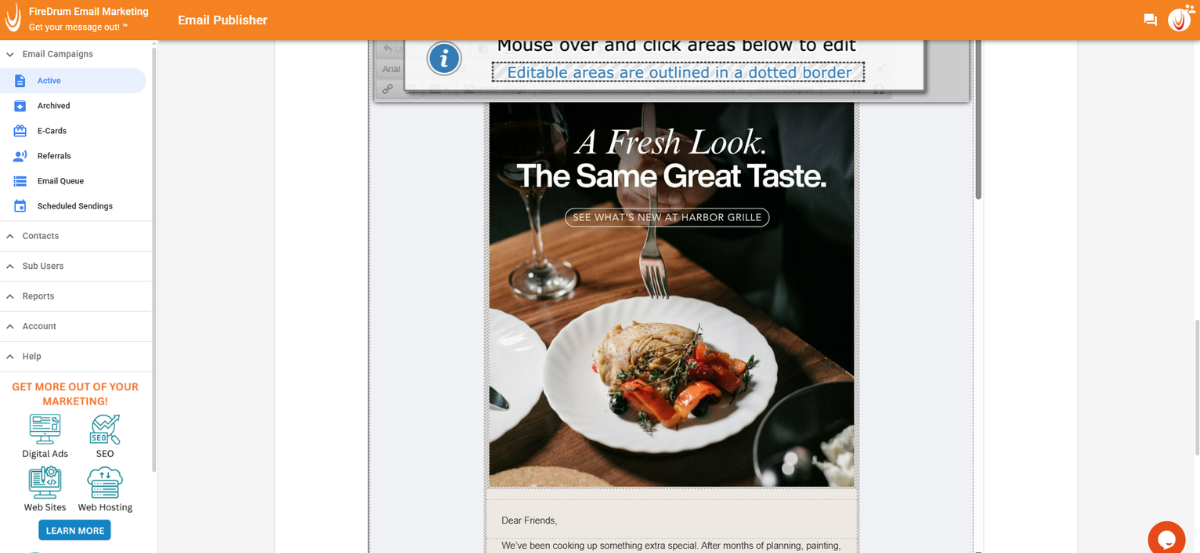
After importing the HTML from Canva into FireDrum Email Marketing, the campaign moves into refinement. This stage focuses on correcting rendering differences, validating links, and improving deliverability so the final email performs consistently across inbox providers.
Fixing layout inconsistencies after import
HTML emails often shift slightly after upload, especially when moving from a design tool into a sending platform. Adjustments inside FireDrum Email Marketing help stabilize the layout.
- Adjust spacing between sections if HTML compression tightens or expands padding
- Update font fallbacks when Canva fonts do not translate cleanly across email clients
- Reposition images that shift due to email client rendering differences
- Standardize alignment for headers, buttons, and content blocks
- Remove any unnecessary inline spacing that disrupts mobile stacking
This step ensures the email maintains the intended structure across desktop and mobile views.
Ensuring CTA performance inside FireDrum Email Marketing
Calls to action determine campaign effectiveness, so each one requires direct validation after import.
- Verify all buttons link to the correct landing pages
- Replace broken or missing URLs immediately before scheduling
- Confirm tracking parameters are attached when campaign attribution is required
- Test CTA behavior in both preview mode and test sends
- Ensure buttons remain visually distinct and tappable on mobile devices
A single incorrect link can reduce campaign performance, so CTA validation is treated as a dedicated review step.
Optimizing for deliverability
Deliverability depends on both the content structure and the technical cleanliness within FireDrum Email Marketing.
- Limit oversized images to reduce email load time and spam filtering risk
- Keep the plain-text version aligned with the HTML email content for consistency
- Remove unnecessary code fragments introduced during Canva export
- Reduce excessive styling that may trigger rendering inconsistencies in inbox providers
- Maintain a balanced text-to-image ratio to support inbox placement
These adjustments improve inbox compatibility and reduce the chance of emails being filtered or displayed incorrectly.
Your Email Campaign Is Ready to Send
At this point, your email has completed the full production workflow in FireDrum Email Marketing, starting in Canva and ending with a fully refined, upload-ready campaign.
The design is structured, the layout has been corrected after import, and every element has been checked for functionality and consistency. Links direct to the correct destinations, images render properly across devices, and spacing holds its structure in both desktop and mobile views. The HTML has been cleaned, optimized, and prepared for real inbox conditions.
All that remains is final validation inside FireDrum Email Marketing. Use preview mode to confirm rendering across email clients, send a test to yourself to verify links and images in a live inbox, and review the mobile version one last time for readability and CTA clarity.
Once those checks are complete, the campaign is fully prepared for launch. Your email is ready to be sent to your selected list with confidence, knowing the design, structure, and delivery setup have all been properly aligned for performance.
FAQs
Can Canva emails be edited after importing into FireDrum?
Yes. HTML edits can be made inside FireDrum Email Marketing after upload, especially for text, links, and spacing adjustments.
Does FireDrum support full HTML email uploads?
FireDrum supports custom HTML campaigns via the “Code Your Own” option, which allows Canva-designed emails to be imported.
Why do Canva emails sometimes look different in inboxes?
Email clients interpret HTML differently. Gmail, Outlook, and Apple Mail each render spacing and fonts with slight variation.
Should images be optimized before exporting from Canva?
Yes. Compressed images reduce load time and improve deliverability across inbox providers.
Is testing necessary before every send?
Yes. Test emails confirm layout accuracy, link functionality, and rendering consistency across devices.